

Quick answer: Adjust PowerPoint table column width by the job each column performs. Give descriptive text enough room to wrap cleanly, keep short number and unit columns compact, and preserve the total table width as you redistribute space. Check the result at presentation size before reducing the font. Equal-width columns are useful for some comparison tables, but they are usually the wrong answer when one column contains sentences and another contains only numbers.
Why equal column widths often fail
Equal widths can make a table look orderly while making its content harder to read. A description such as “Customer onboarding delayed by legal review” needs more horizontal space than 18% or $42K. If both columns receive the same width, the sentence wraps into several lines, rows become taller, and the numerical comparison gets pushed away from the labels it explains.
The fix is not to make every column wider. Move space from low-content columns to high-content columns while keeping the table inside the slide.
Classify columns before resizing them
| Column role | Typical content | Width approach |
|---|---|---|
| Description | Sentences, findings, actions | Give it the most room |
| Label | Product, team, region, category | Use enough room to avoid awkward breaks |
| Number | Amounts, counts, percentages | Keep compact but preserve digits and signs |
| Unit or status | %, days, owner, status | Keep narrow when values are short |
This prevents the common mistake of dragging borders without a plan. It also makes the layout easier to repeat when the data changes next month.
Adjust PowerPoint table column width manually
- Select the table and decide which column carries the longest meaningful text.
- Drag that column’s right or left boundary to give the text more room.
- Recover the same amount of space from short numeric, unit, or status columns.
- Keep percentage signs, currency symbols, minus signs, decimals, and units visible.
- Review the total table width so the table still fits the slide.
PowerPoint also lets you enter exact Width values on the Table Layout tab. That is useful when several slides need the same column structure. Microsoft documents both boundary dragging and exact Cell Size controls.
Do not use Distribute Columns automatically. It is appropriate when columns should truly be equal, but a mixed text-and-number table usually needs unequal widths.
Check wrapping, row height, and final viewing size
- Avoid one-word last lines in description cells when a small width change can remove them.
- Confirm that headers still describe the values below them.
- Keep numbers on one line when possible.
- Check that wider text columns have not pushed units or totals outside the visible table.
- View the slide at the size used for presenting or exporting.
If the entire table is still too wide after sensible column balancing, reduce the information or split the table before shrinking the font. The separate guide on fitting a wide PowerPoint table on one slide explains that decision.
When Balance Content is useful
TableAutomation is a Windows PowerPoint add-in for recurring Excel and Word table work. Its Balance Content workflow is intended for the specific case where long-text columns wrap too much while short numeric columns take too much space. It redistributes column widths so text columns receive more room and shorter columns stay tighter while preserving the table’s overall width.
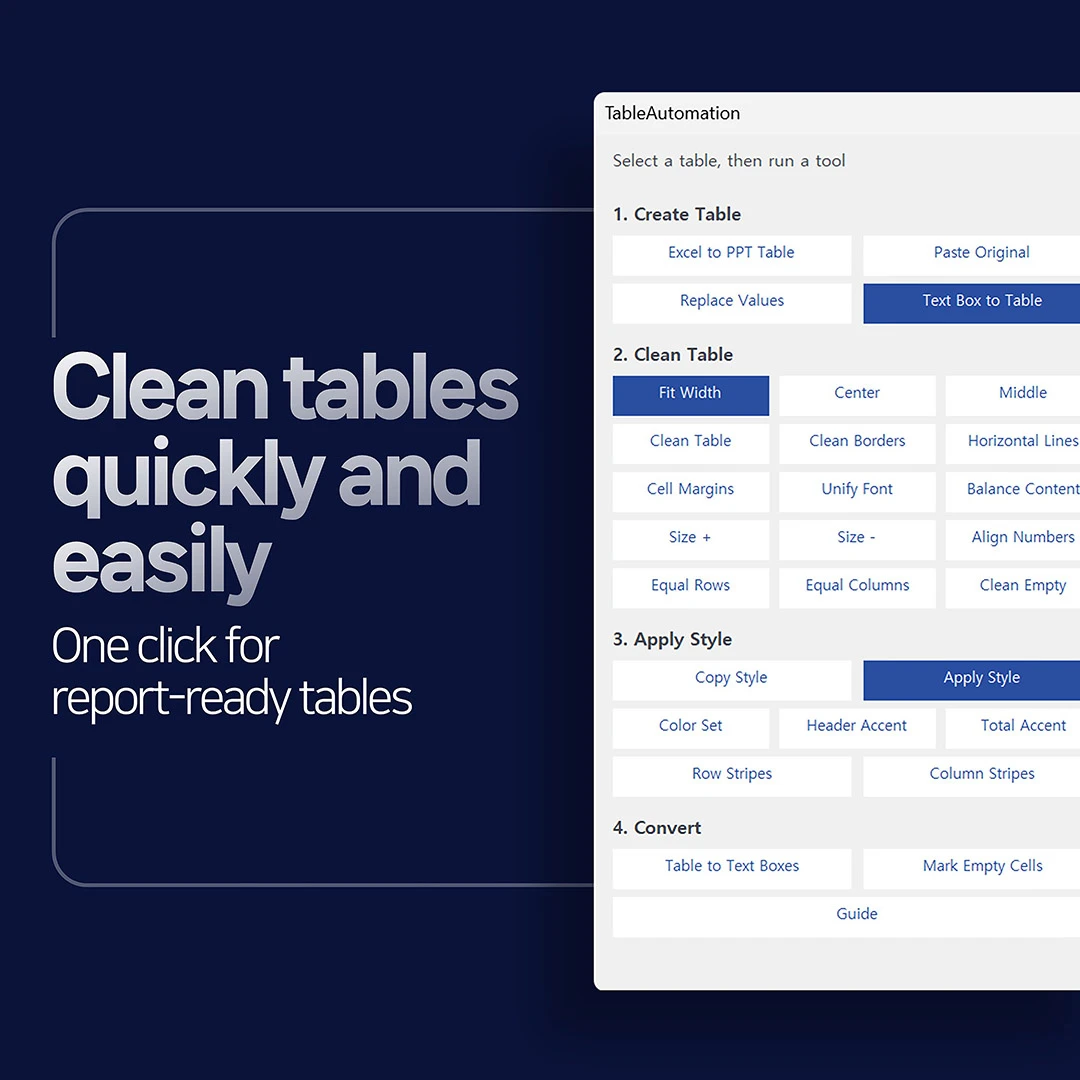
Product interface image. Results depend on the selected native PowerPoint table and its content.
Use Balance Content after you have decided what each column should communicate. It does not decide which data belongs on the slide, rewrite text, or guarantee that every table will be readable without review.
Compatibility and limits
The current TableAutomation product page lists Windows 10/11 and Microsoft 365 desktop PowerPoint or Office 16.0-based desktop PowerPoint as supported. macOS is not supported, and PowerPoint for the web or mobile is outside the supported environment. The workflow is designed for a selected native PowerPoint table; final results still require human review.
FAQ
How do I change PowerPoint table column width?
Select the table, point to a column boundary, and drag it left or right. You can also enter an exact Width value in the Cell Size group on the Table Layout tab.
Should all columns in a PowerPoint table be the same width?
Only when the columns have similar roles and content lengths. Description, number, unit, and status columns usually need different widths to stay readable.
How can I fit long text without making the PowerPoint table font smaller?
Give the text column more horizontal space, recover width from short columns, and review wrapping and row height. If the table still does not fit, remove secondary information or split the table before reducing the font.
What does TableAutomation Balance Content do?
It redistributes width in a selected native PowerPoint table so long-text columns receive more room and short numeric columns stay tighter while the overall table width is preserved.
Sources: Microsoft: Change the size of a table, column, or row in PowerPoint; Microsoft: Video—Resize table rows and columns.
ㅇ