

Windows PowerPoint only. macOS is not supported.
PowerPoint table automation add-in
Stop rebuilding PowerPoint tables after every Excel paste.
TableAutomation helps turn Excel and Word tables into report-ready PowerPoint tables. Keep the design, update only the data, clean messy formatting, and make recurring report tables easier to maintain.
Built for reports, KPI slides, finance summaries, proposals, and table-heavy PowerPoint decks.
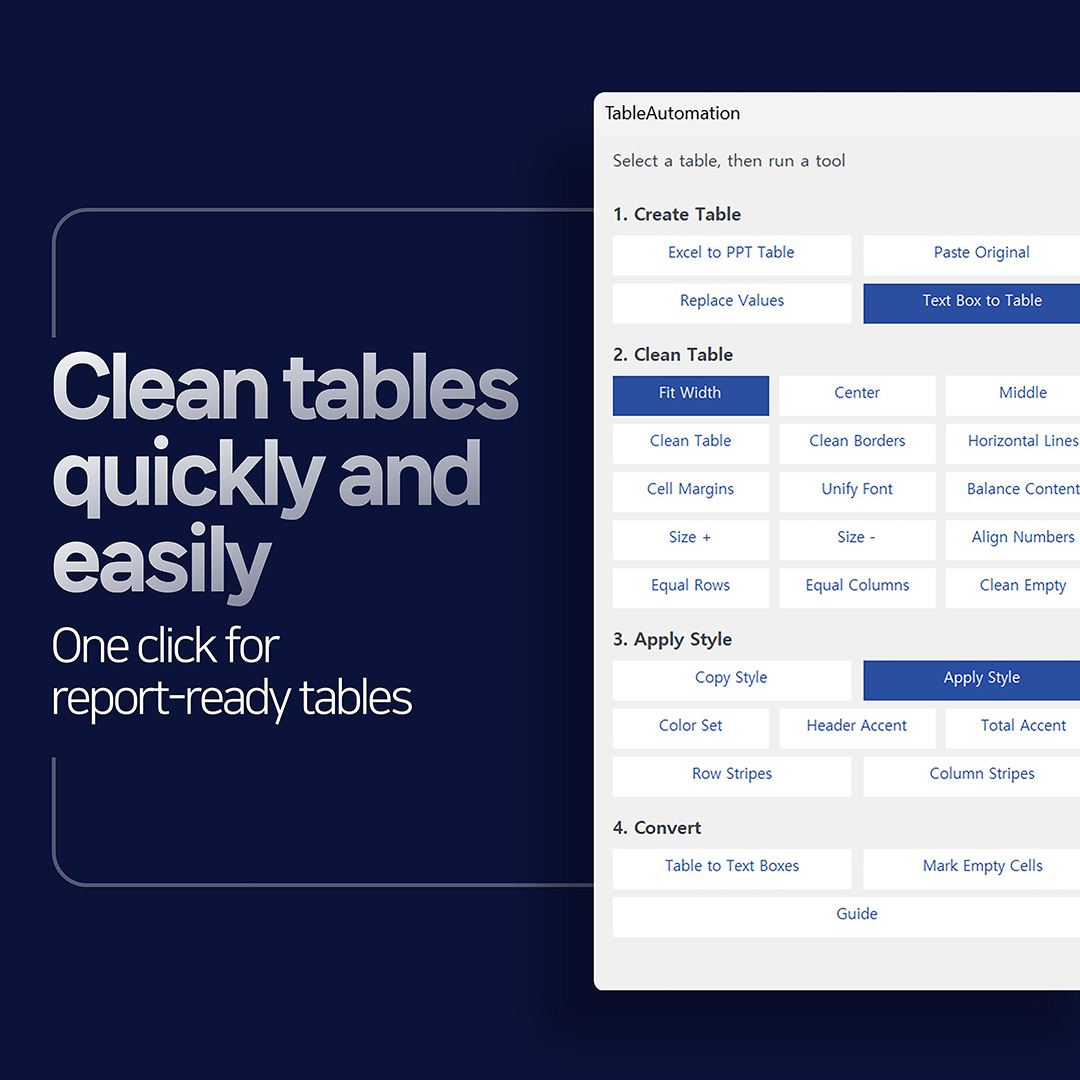
Core workflow: Replace Values, Clean Table, and Balance Content.
Product definition
What is TableAutomation?
TableAutomation is a practical PowerPoint add-in for people who repeatedly move Excel or Word tables into presentation decks.
It is not just a table design tool. It is designed for real report workflows where data changes, table styles must stay consistent, and pasted tables need cleanup before delivery.
Problem
Excel tables rarely arrive in PowerPoint exactly the way you need them.
Even when the table looks close, small formatting problems can create repeated manual work before the slide is ready.
Fonts, borders, row heights, and column widths often change after pasting Excel tables into PowerPoint.
When you only need new numbers, pasting again can disturb the table design you already fixed.
Fonts, margins, borders, headers, and alignment take too long when they are fixed one by one.
Long labels wrap too much while short numeric columns waste space.
Monthly and weekly reports often require the same table update and cleanup again.
Before and after
The goal is not only a better-looking table. The goal is not fixing it again.
You paste an Excel table, then fix fonts, margins, borders, headers, alignment, and column widths by hand.
Use TableAutomation to clean the table, balance content, and update values while keeping the PowerPoint table style.
When the data changes, replace only the values instead of rebuilding the whole table again.
Demo video
See TableAutomation replace PowerPoint table values in seconds.
Watch the PowerPoint add-in workflow before purchase: update a table while keeping the slide design.
After purchase, run DKPPTInstaller.exe. The installer checks your PowerPoint add-in environment, installs the TableAutomation package, registers the PowerPoint add-in, verifies the installation, and supports uninstall.
Top features
Start with these three workflows.
These are the strongest workflows for recurring PowerPoint report tables.
Replace Values
Clean Table
Balance Content
Core features
Included table tools
Keep Excel Style
Paste Excel Original
Fit Slide Width
Align Numbers
Header Accent
Row Stripes
Column Stripes
Copy Style and Apply Style
Mark Empty Cells
Use cases
Useful for recurring PowerPoint table work
- Monthly and weekly report tables
- Sales, cost, KPI, and finance summaries
- Proposal and comparison tables
- IR, performance, and business review decks
- PowerPoint template users who need tables to match a clean deck style
- Consultants, planners, analysts, instructors, and presentation designers
Purchase checklist
Check before purchase
TableAutomation is built for Windows desktop PowerPoint. It is not a web or mobile add-in. If your environment is different, please contact support before purchase.
| Supported operating system | Windows 10 / Windows 11. |
|---|---|
| Supported PowerPoint | Microsoft 365 PowerPoint desktop / Office 16.0 based desktop PowerPoint. |
| Add-in type | PowerPoint PPAM add-in for Windows desktop PowerPoint. |
| Mac support | Not currently guaranteed. |
| PowerPoint Web / Mobile | Not supported. |
| Installation method | Windows installer package. Run DKPPTInstaller.exe after purchase. The installer performs preflight checks, installs the TableAutomation PowerPoint add-in package, registers PowerPoint AutoLoad, verifies installation, and supports uninstall. |
| Security notice | Current package is an UNSIGNED_RELEASE. Windows security warning may appear until code signing is applied. |
| License use | This product may be registered and used on one PC per license. Select your preferred language before downloading. You may download another language version for the same registered PC, but the license cannot be used on another PC. Changing computers requires a license transfer through customer support. |
| Best first workflow | Replace Values, Clean Table, and Balance Content. |
| Support contact | Product Q&A / sdkcool@naver.com / 042-525-1599. |
| Refund policy | Digital product refund rules apply. Refund eligibility depends on download, installation, activation, and support history. |
FAQ
Frequently Asked Questions
How does the one-PC license work?
This product may be registered and used on one PC per license. You may download another language version for the same registered PC, but the license cannot be used on another PC. Changing computers requires a license transfer through customer support.
Does it paste Excel tables exactly as they are?
It provides workflows for keeping an Excel-like table style and for keeping an existing PowerPoint table style while replacing only the values.
Can I update an existing PowerPoint table without losing the design?
Yes. Replace Values is designed for keeping the existing table style while changing only the data.
Does it support Word tables?
Yes. Word Original Fit is designed for fitting Word or Excel-origin table content into PowerPoint table space.
Is it only for making tables look prettier?
No. The main value is reducing repeated table cleanup in real reporting workflows: data updates, formatting cleanup, content balancing, style reuse, and consistency.
What should I try first?
Start with Replace Values, Clean Table, and Balance Content. These are the strongest workflows for recurring PowerPoint report tables.
Spend less time cleaning up PowerPoint tables.
If PowerPoint table cleanup is part of your recurring work, TableAutomation helps reduce the manual fixes that happen after every paste or data update.
Reviews
There are no reviews yet.