

Quick answer: The right paste option depends on whether you need an editable table that matches the slide theme, an editable table that stays close to the Excel design, an embedded worksheet, a fixed picture, or a linked source.
Pick the paste result you actually need
| If you need… | Use this option | What to expect |
|---|---|---|
| An editable table that matches the presentation | Use Destination Styles | PowerPoint applies the presentation theme. |
| An editable table that stays close to Excel | Keep Source Formatting | PowerPoint keeps source formatting as far as the editable table format allows. |
| An Excel worksheet inside the slide | Embed | The slide contains an Excel object, not a normal PowerPoint table. |
| A fixed visual | Picture | The result is not editable as a table. |
| Data that refreshes from a workbook | Link | The source workbook must remain available. |
Microsoft documents these current desktop PowerPoint options. The right choice depends on whether the priority is the slide theme, source formatting, editability, or update behavior.
Why formatting problems appear after an Excel paste
Excel and PowerPoint serve different jobs. A table can paste as editable content but still need attention before it is ready for a report: fonts can drift from the deck, long labels can consume too much width, numeric columns can become hard to compare, and borders or margins can look uneven.
Five native PowerPoint methods
1. Use Destination Styles when the slide theme matters
Copy the range in Excel, right-click the slide, and choose Use Destination Styles. The table remains editable and uses the presentation’s font and color scheme.
2. Use Keep Source Formatting when the Excel look matters
Choose Keep Source Formatting when the source colors, borders, or number presentation matter more than matching the slide theme. Check the result for width, wrapping, and number alignment.
3. Use Embed when you need Excel inside the slide
Embed creates a copy of the worksheet inside the presentation. It is not the same as a native PowerPoint table and can increase the presentation size.
4. Use Picture when the table is final
Choose a picture only when the table is a fixed visual. It cannot be edited as a PowerPoint table afterward.
5. Resize the native table after pasting
In Table Layout, use the Cell Size and Table Size controls. Use Distribute Rows or Distribute Columns only where uniform spacing improves readability.
When manual cleanup becomes the bottleneck
Built-in methods are the right place to start. They become slow when the same report table arrives every week or month and each update restarts the same cleanup.
That is the point where TableAutomation for recurring PowerPoint table cleanup is designed to help. It is a PowerPoint add-in for repeatable native-table cleanup work, not a promise that every Excel table will transfer perfectly.
Replace Values
Use this when the PowerPoint table design is already right and you need to update values without rebuilding the visual work. Check the finished slide before sharing it.
Clean Table
The product lists Clean Table together with controls for borders, margins, fonts, alignment, and headers. These are relevant when the same presentation cleanup repeats before a table goes into a report or client deck.
Balance Content
Use this when long text needs more room while short numeric columns should remain tighter within the table width.
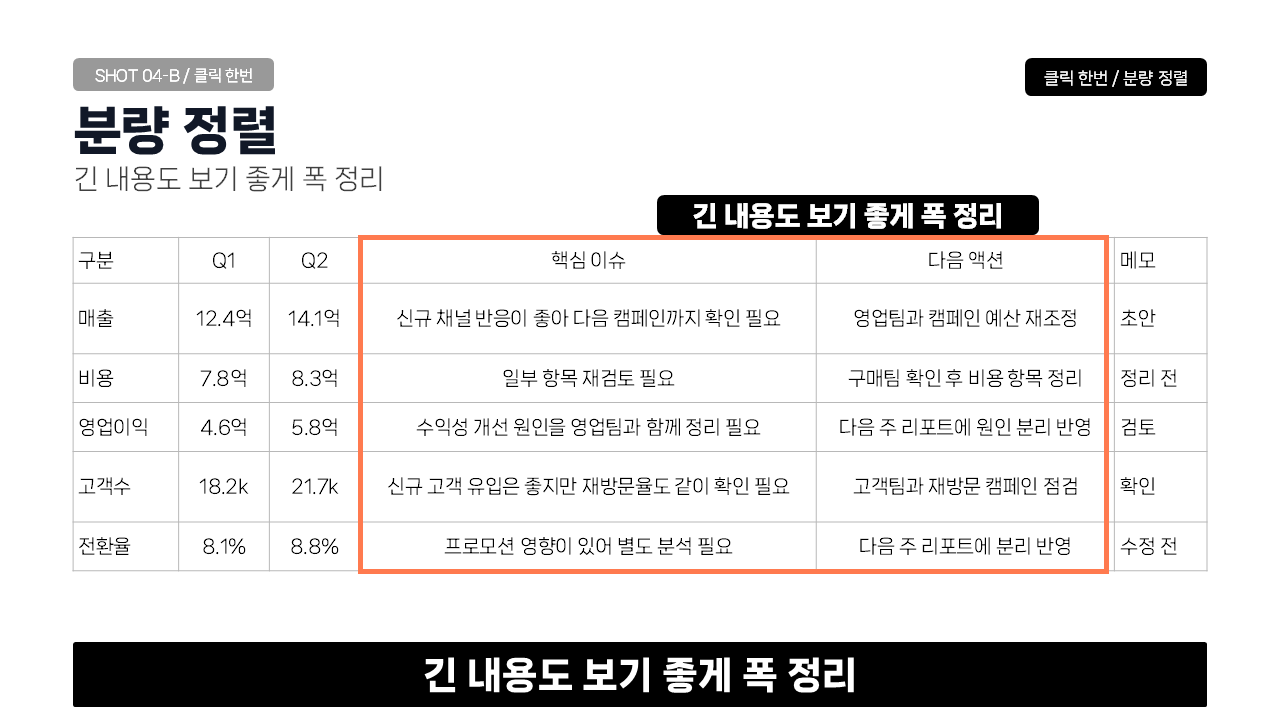
This is a product demonstration image, not a guarantee that every Excel table will transfer without review. Check the finished slide after applying a cleanup action.
Compatibility and limits
The current product page lists Windows 10/11 and Microsoft 365 desktop PowerPoint or Office 16.0-based desktop PowerPoint as supported. macOS is not currently guaranteed, and PowerPoint for the web or mobile is not supported.
FAQ
Does Keep Source Formatting keep everything exactly the same?
It is the native option for keeping the Excel source look in an editable PowerPoint table. Check the finished slide because width and wrapping can still require adjustments.
Which option is best when slide design matters more than Excel colors?
Use Destination Styles.
Should I paste as a picture to avoid formatting problems?
Only when a static visual is the goal. A picture is not editable as a PowerPoint table.
When is TableAutomation useful?
When the same PowerPoint-table cleanup repeats across reports, slides, or reporting periods. Review TableAutomation product requirements before purchase.
Sources: Microsoft: insert and update Excel data in PowerPoint; Microsoft: resize PowerPoint tables.