

Quick answer: A PowerPoint table is not presentation-ready just because its values are visible. Before a client sees it, check the table’s type, headers, borders, cell spacing, vertical alignment, column widths, number display, and whether any text is clipped. If this cleanup repeats after every Excel or Word paste, use a repeatable cleanup workflow—but still review the finished slide yourself.
Why a pasted table can look messy in PowerPoint
Excel is built for working with data; PowerPoint is built for communicating it on a slide. A table can arrive with the right numbers yet still look unprepared for a client deck. Common issues include mixed fonts, crowded cells, uneven borders, headers that do not stand out, wrapped labels, and widths that no longer fit the slide.
Those details matter because a client reads the table as part of the presentation. When the visual hierarchy is unclear, even correct numbers take longer to scan.
A practical PowerPoint table cleanup checklist
1. Check the message before changing the formatting
Confirm that the row and column order still supports the point of the slide. Make sure the title, headers, totals, and important comparison are visible at presentation size.
2. Make the table fit the slide
Review the table width, row height, and column widths. Long labels need enough room to avoid distracting wrapping, while short numeric columns should not consume unnecessary space.
3. Make hierarchy easy to scan
Use a consistent type treatment, distinguish the header row, and make borders support the structure. Check cell margins and vertical alignment so the table does not look cramped or uneven.
4. Review numbers as numbers
Check decimal places, units, negative values, percentages, and alignment. The goal is to let the audience compare values quickly.
5. Do a final slide-view review
Look at the completed slide at the size you will actually present or export. Check for clipped text, empty cells, accidental line breaks, inconsistent headers, and content that feels too dense.
Microsoft documents the current options for inserting Excel data into PowerPoint and for changing table row and column size. Those options are useful, but they do not remove the need for final presentation review.
When manual cleanup becomes repetitive
Manual cleanup is reasonable when a table is a one-off or only a few values changed. It becomes a problem when the same report layout returns every month, week, or proposal cycle. You paste a new range, then repeat the same font, margin, border, header, alignment, and width corrections before the slide can be shared.
At that point, the task is not creating a new table design. It is restoring a reliable presentation standard after the data changes.
Use Clean Table for the repeatable pass
TableAutomation is a Windows PowerPoint add-in for recurring Excel and Word table work. Its Clean Table workflow is intended for a PowerPoint table that is already on the slide but still looks too messy for a report or client deck. The product page describes the workflow as cleaning fonts, margins, vertical alignment, borders, and headers in one pass.
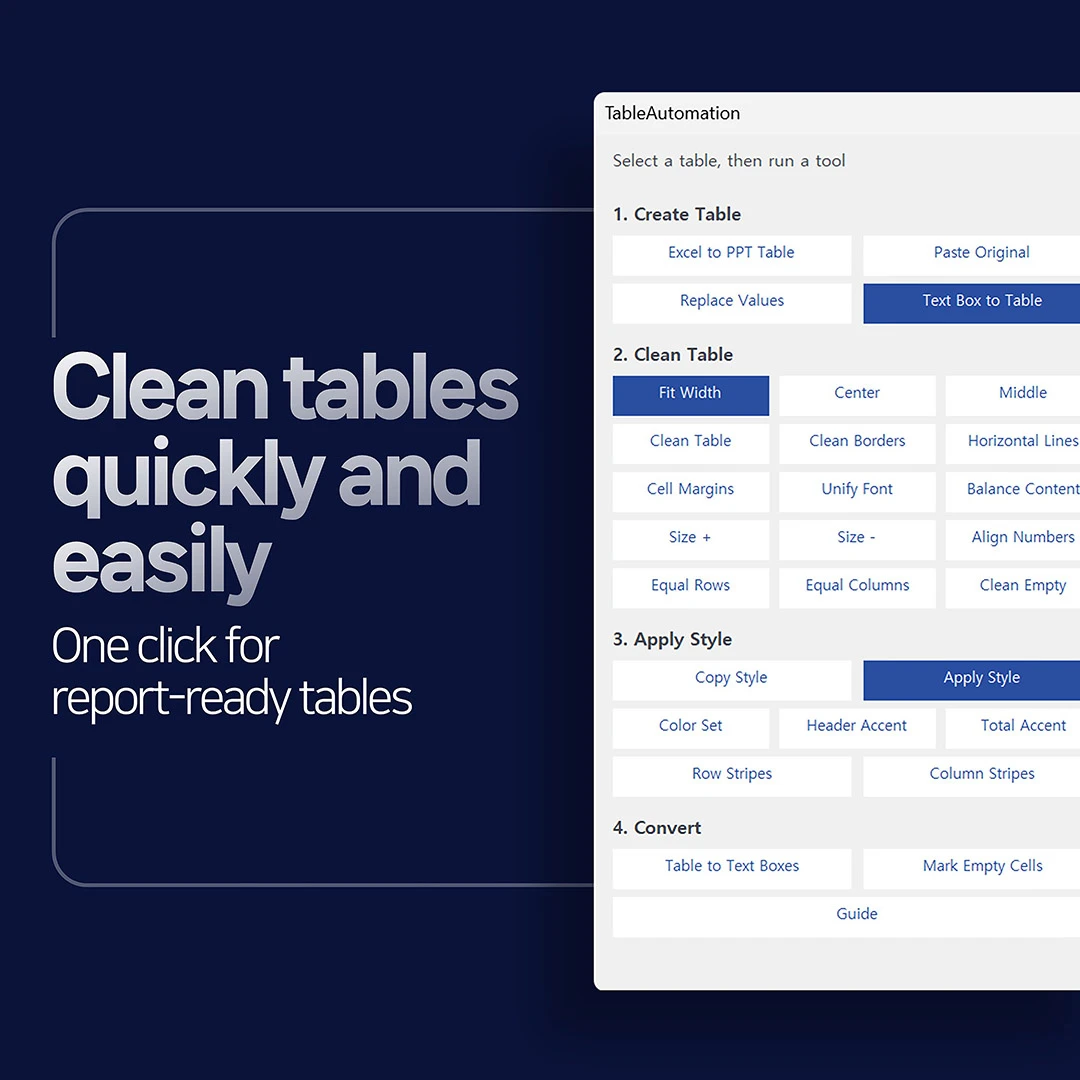
Clean Table is most useful when the visual cleanup is recurring. It is not a claim that every source table needs no human judgment, or that every table should receive the same design treatment. Complete the final slide-view review for your own data and audience.
Final checklist before a client presentation
- The table supports one clear slide message.
- Headers, totals, and important comparisons are recognizable immediately.
- Text is not clipped, crowded, or wrapped in a distracting way.
- Number formats and alignments make comparisons easy.
- Borders, spacing, and typography are consistent with the presentation.
- You have reviewed the slide at its final presentation or export size.
Compatibility and limits
The current TableAutomation product page lists Windows 10/11 and Microsoft 365 desktop PowerPoint or Office 16.0-based desktop PowerPoint as supported. macOS is not supported, and PowerPoint for the web or mobile is not a supported environment. The result still depends on the selected PowerPoint table and the incoming data.
FAQ
What makes a PowerPoint table look unready for a client presentation?
Usually it is not one large mistake. Mixed fonts, unclear headers, crowded margins, inconsistent borders, uneven alignment, clipped text, and difficult-to-scan numbers can make a correct table feel unfinished.
Should I paste the Excel table again or clean the PowerPoint table I already have?
If the slide design is already approved and only the data needs attention, first review whether the existing PowerPoint table can be updated and cleaned. Paste a fresh range when the layout itself needs to change or the source appearance is the real priority.
What should I check after cleaning up a PowerPoint table?
Check the slide message, row and column order, header clarity, text wrapping, numbers, important totals, and presentation-size readability. A cleanup pass does not replace final human review.
When is TableAutomation Clean Table useful?
It is useful when a PowerPoint table repeatedly needs the same formatting cleanup before reports, proposals, KPI slides, or client decks are delivered.
Review TableAutomation for recurring PowerPoint table cleanup.
Sources: Microsoft: Insert and update Excel data in PowerPoint; Microsoft: Change the size of a table column or row in PowerPoint.